Members
Manage your staff team, invite new members, and link in-game identities.
The Members page is your central hub for managing the team of individuals who have access to your monoAdmin project.
Team Overview
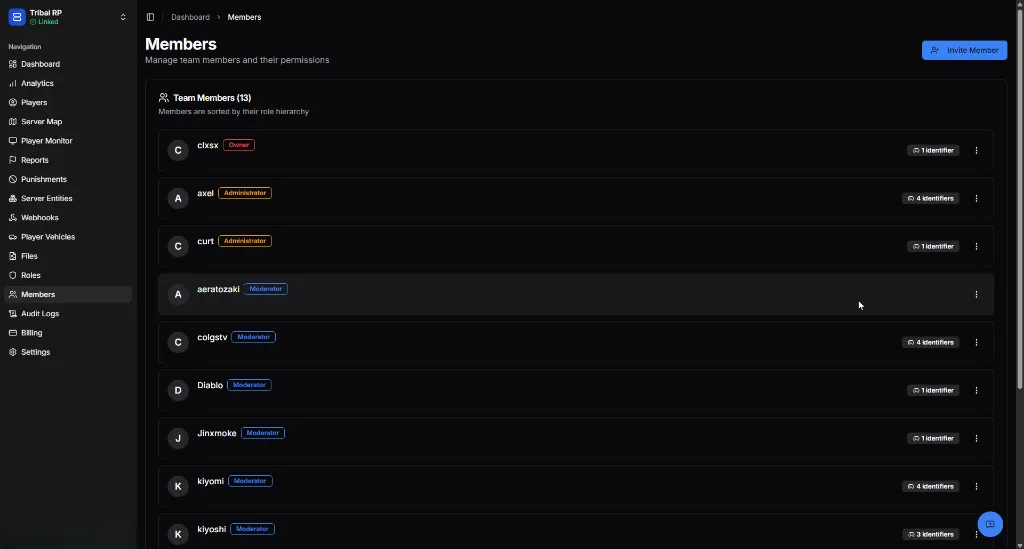
Section titled “Team Overview”The main list shows all current members of your project, automatically sorted by their position in the role hierarchy.
Member Details
Section titled “Member Details”For each member, you can see:
- Avatar & Name — Their panel identity.
- Role Badge — Their primary role (e.g., Owner, Administrator, Moderator).
- Identifiers Count — How many in-game identifiers are currently linked to their account.
Inviting Members
Section titled “Inviting Members”To add a new staff member to your project, click the Invite Member button.
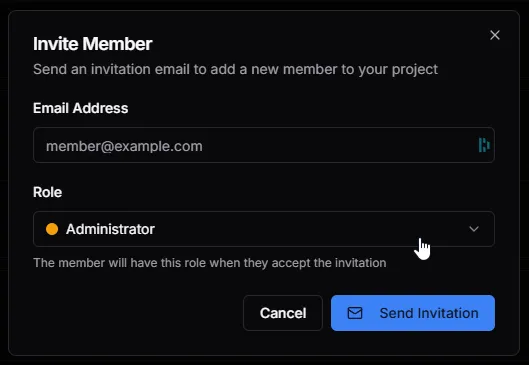
- Email Address — Enter the email of the person you wish to invite.
- Role — Select the initial role they will hold. They will gain these permissions immediately upon accepting the invite.
- Send Invitation — The system will send an email with a secure join link.
In-Game Identifiers
Section titled “In-Game Identifiers”For staff members to interact with the game server (e.g., using admin commands, viewing telemetry, or receiving in-game notifications), their panel account must be linked to their in-game identity.
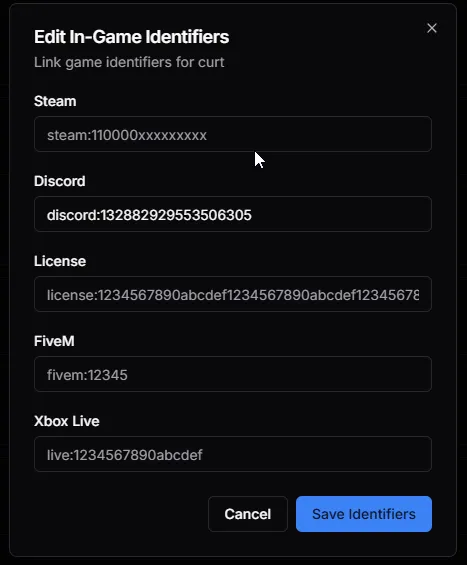
Click the Identifiers button on a member entry to manage their links:
- Steam / Discord / License — These are used to recognize the staff member when they are online.
- FiveM / Xbox Live — Additional identifiers to ensure coverage across all connection types.
Member Management
Section titled “Member Management”Click the More Options (⋮) button on any member entry to perform management actions:
- Change Roles — Update their assigned staff roles.
- Remove Member — Revoke their access to the project entirely.